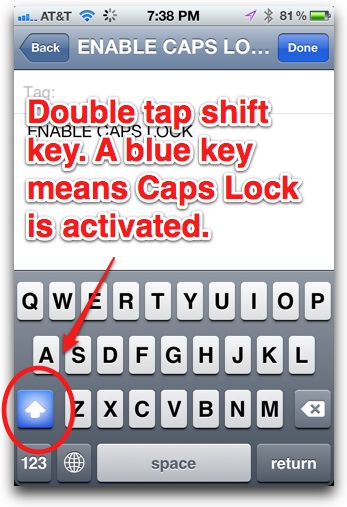
The iPhone’s keyboard has a Caps Lock feature, but you may have to first activate it in the iPhone’s Settings to use it. To test if Caps Lock activated, first try double tapping the shift key (the key with the up arrow, see image above) on the touchscreen keyboard—the key will turn blue to tell you Caps Lock is activated. If it doesn’t turn blue, you’ll need to go into the iPhone’s Settings to enable it. Just follow the step-by-step instructions below.
Video Instructions:
Text:
1. Open Settings:

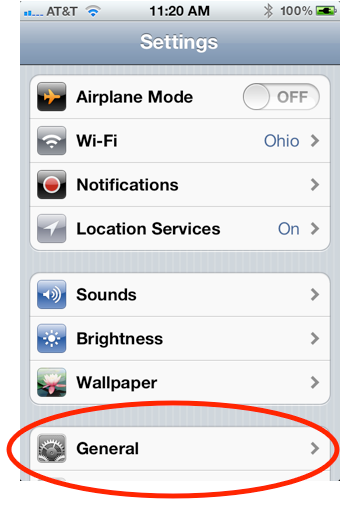
2. Tap General:
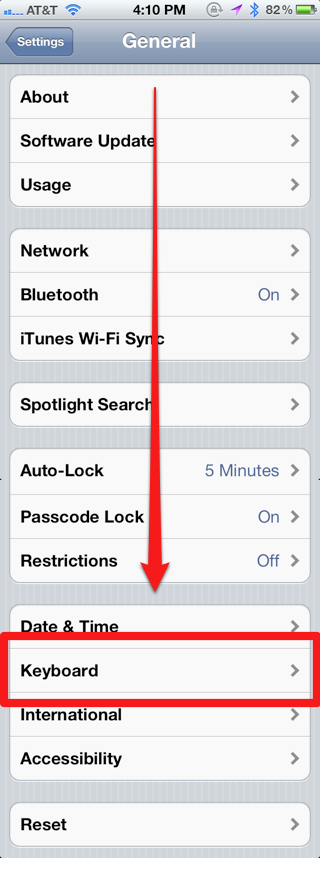
3. Scroll down and tap Keyboard:
4. Slide the tab for Enable Caps Lock to On:
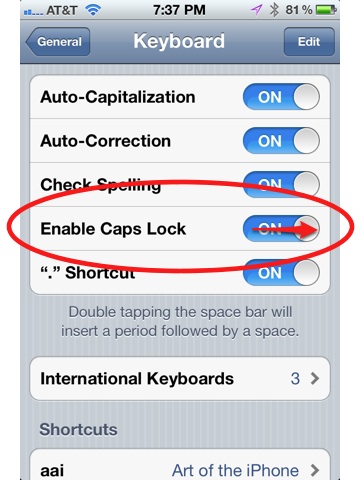
Now, when you double tap the shift key on the iPhone/iPad’s keyboard (the key with the up arrow), Caps Lock will be activated. To turn off Caps Lock, tap the key again.