
If you’ve ever received an email from someone with an iPhone, you may have seen it. Sent from my iPhone, it reads. Some find it annoying, like the person is bragging about their fancy smancy iPhone. Others, like me, think it gives the email context, as in: I sent this while on the go so please excuse the short response and my touchscreen-keyboard spelling errors. In any case, you can either delete or change that message to read however you like. Here’s how.
Step-by-step instructions:
1. Open Settings:

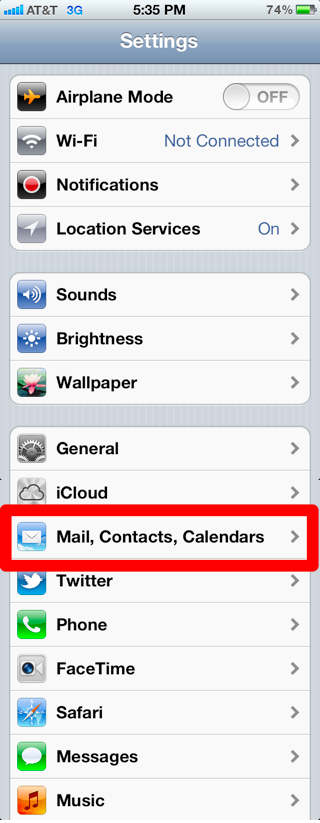
2. Scroll down and tap Mail, Contacts, Calendars:
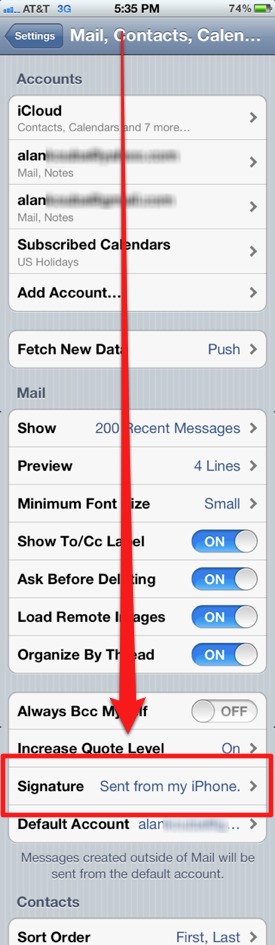
3. Scroll down and tap Signature:
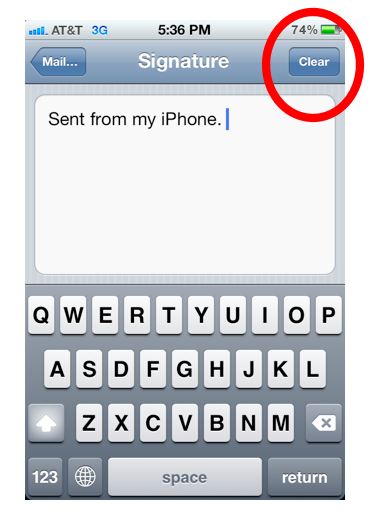
4. Tap Clear, or change the text to whatever you want:
5. When finished, simply press the iPhone’s home button.











Quote:
“Some find it annoying, like the person is bragging about their fancy smancy iPhone. Others, like me, think it gives the email context, as in: I sent this while on the go so please excuse the short response and my touchscreen-keyboard spelling errors.”
You can have the best of both worlds by changing this signature to something vendor neutral. Try “Sent from my mobile device.”