Instructions for Adding Photos to iPhone Contacts:
1. Tap on the Contacts app, or tap Contacts in the Phone app:
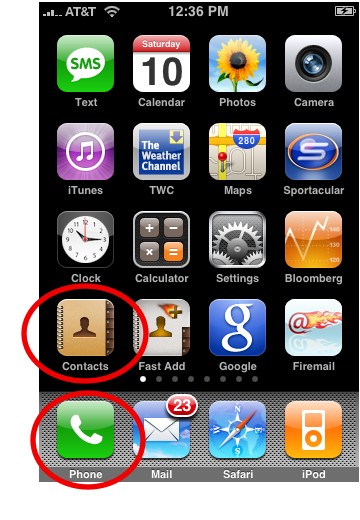
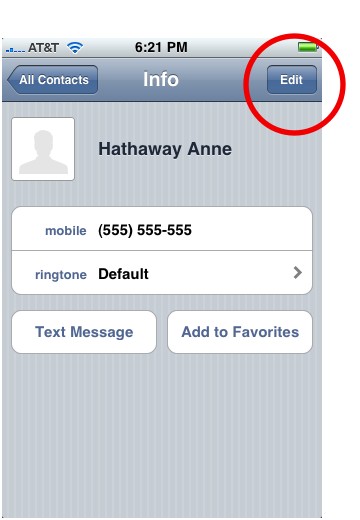
2. Scroll to the person or business you want to add the photo to, and tap their name.
3. Tap Edit in the top right corner:
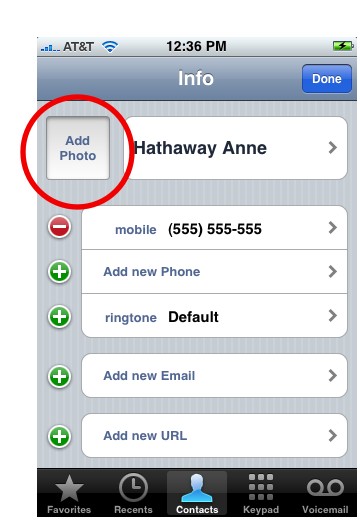
4. Tap Add Photo.
5. Tap Choose Existing Photo if you have a photo on your iPhone that you want to use. Or, tap Take Photo if the person is in photo range:
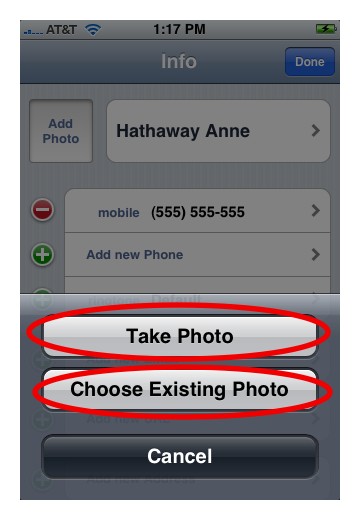
6. Selecting Choose Exising Photo will open up the iPhone’s Photo Albums. Navigate through your pictures and select the one you want.
7. You can edit the size and orientation of the photo. This comes in handy if you want to use just the face of a person, or if there are multiple people in a photo. You edit by zooming in and out using pinching gestures or by dragging the photo left, right, up, or down:

8. When you are finished, tap Set Photo.
9. Tap Done in the top right corner, and you’ve successfully added a photo to your contact.
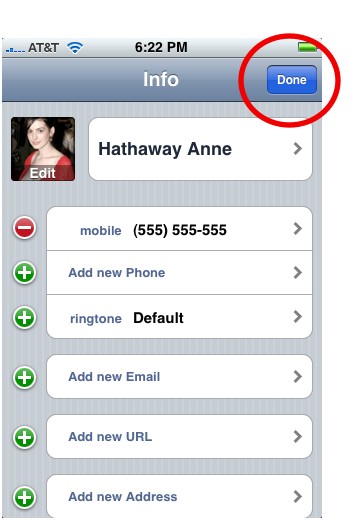
And that’s it. The next time the contact calls, you can see their bright smiling face lit up on your iPhone.
Check out all our iPhone Tips.