
Want to get a notification for only when a specific contact sends you an email? It’s now possible thanks to the VIP contacts feature in the Mail app. It’s easy to set up, just follow the step-by-step instructions below.
1. Open the Mail app:
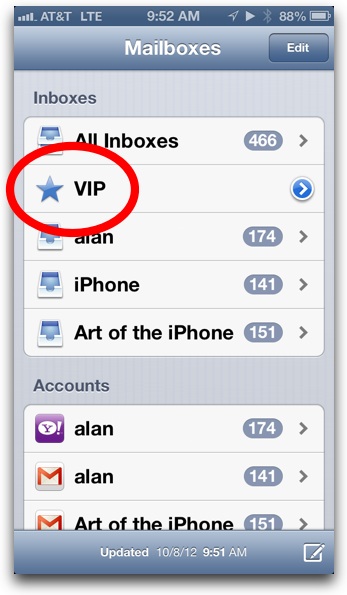
2. Tap the buttons in the top left corner to navigate to Mailboxes view:

3. Tap VIP:
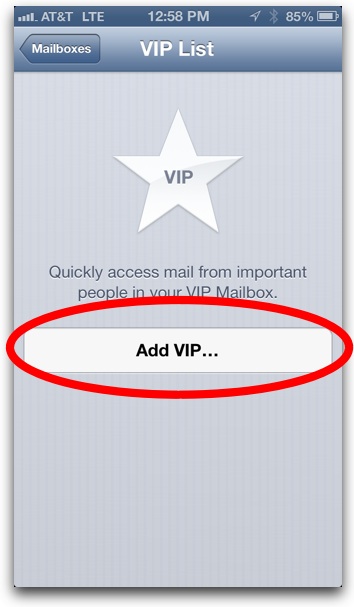
4. Tap Add VIP…:
5. Tap a contact to add it to your VIP list (see note below if you aren’t able select a contact):
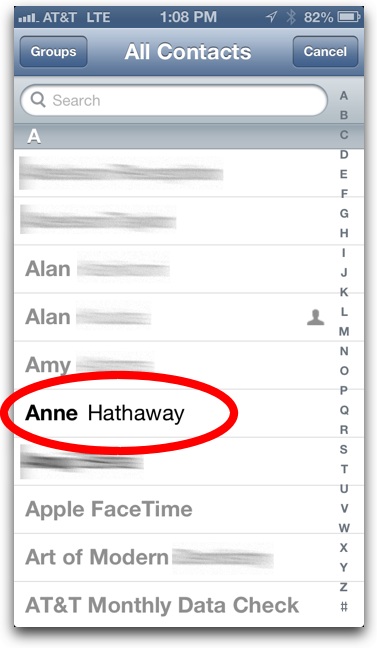
Note: A contact must have an email address assigned to it in order to add it to the VIP list. To add an email to a contact, quit out of Mail, open the Contacts app, tap the contact’s name, tap Edit in the top right corner, and enter an email.
6. To add another, tap Add VIP… again:
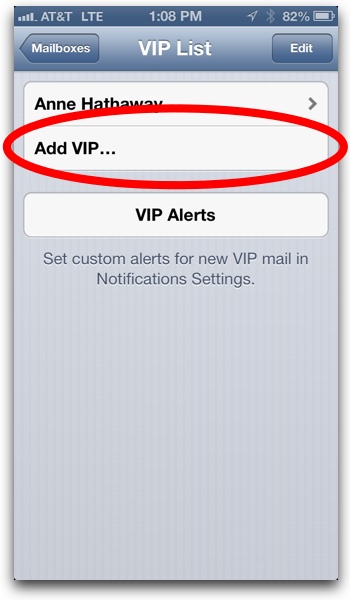
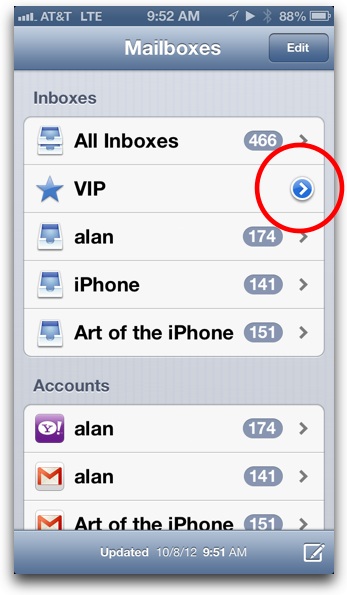
Note: To add more contacts to the VIP list in the future, tap the blue and white arrow button in Mailboxes view:
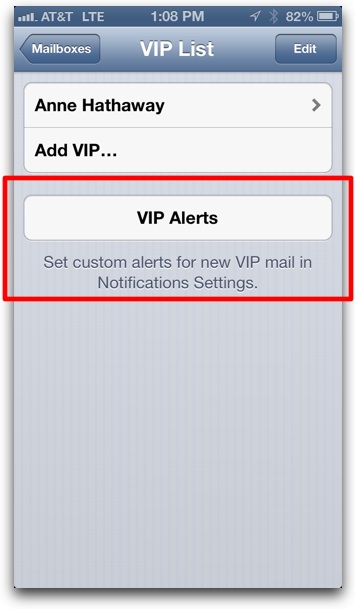
7. When finished adding contacts, next tap VIP Alerts:
8. Adjust the various settings to your liking:
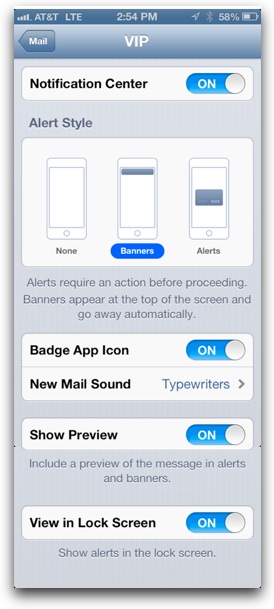
And that’s it, you’ve set up VIP email notifications. Also note that VIPs get their own special inbox, so emails from VIPs will appear in the VIP inbox in addition to the original inbox (in other words, your Gmail account, etc).
Be sure to check out more of our iPhone Tips.









You can add a person to the VIP list when reading an email. Tap on their From: line and then add them from that screen. This lets you have VIP email addresses without a contact card for them.
perfect tip